Tag: Fedora Atomic

  • Review of ProtonVPN on Fedora Atomic Silverblue

    I bought ProtonVPN for Fedora Atomic Silverblue, the Gnome desktop, because they had a sale and the price was unbeatable at €2.49/month but now I regret it, if you can afford it pay a little more and go with Mullvad or WindScribe, they both work with Fedora Atomic, I was previously with WindScribe for a year and I had zero problems with them, I did not renew because I was on a free plan and at the time WindScribe was not running any sale and ProtonVPN was.
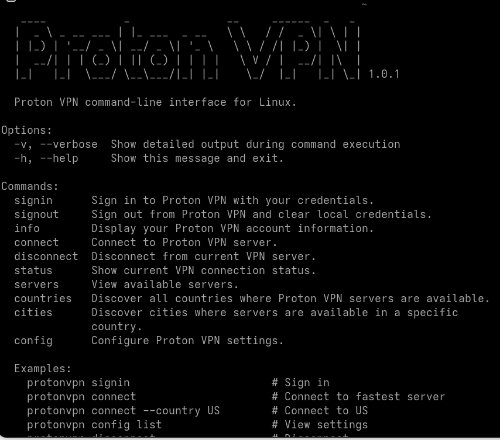
    ProtonVPN CLI Linux
    ProtonVPN CLI Commmand Line Linux

    I am going to keep ProtonVPN because I made it work in the end but be aware that if you go down this route with Fedora Atomic as your main operating sytem you will have to spend two days of reading manuals, forums and trying and testing, ProtonVPN, a company worth millions treats Linux users like garbage while Mullvad a company with a few thousand users gives the same experience to Windows and Linux users, too bad the price is double if it wasn’t for this I would not have hesitated going with them, but even ProtonVPN price has a catch, unlike Mullvad and WindScribe, ProtonVPN does not renew at the price you bought, it is set to auto renew at double the cost, the first thing to do after buying ProtonVPN on sale is to cancel your auto renewal to avoid surprises, I do think they lose money with the €2,49/month sale but they must be hopping they upscale me on their other products or that I renew at the expensive price.

    Another reason why ProtonVPN is cheaper than their competitors is because unlike WindScribe or Mullvad, they run most of their locations as virtual, most of the servers Proton has are located in the United Kingdom, Singapore and Romania, all countries with cheap bandwidth and servers, you can see a list of their virtual locations in their Smart Routing page: https://protonvpn.com/support/how-smart-routing-works

    ProtonVPN has a non official flatpak that some people says works fine, the catch is that it is not an official flatpak, do you really want to install security software that is not official and has no verified or known developer behind? I decided I would not do that. Shame on ProtonVPN once more for not being able to do this themselves, they don’t care about Linux users. They have a GUI for Linux users too but the killswitch works best with ProtonVPN CLI command line, and again that is a security product, if you want the best security you will need the CLI version, that means that after two days of learning how to install it, thanks to the half baked installation instructions from Proton, you will need two more days learning about the command line structure.

    But enough ranting, if you already have ProtonVPN this is how you set it up in Fedora Atomic. The latest 1.0.4-1 version.

    1. Get proton from the official repository

    wget "https://repo.protonvpn.com/fedora-$(cat /etc/fedora-release | cut -d' ' -f 3)-stable/protonvpn-stable-release/protonvpn-stable-release-1.0.4-1.noarch.rpm"

    2. Install ProtonVPN layering it:

    sudo rpm-ostree install ./protonvpn-stable-release-1.0.4-1.noarch.rpm

    3. Reboot

    systemctl reboot

    4. Learn ProtonVPN CLI commands, open terminal and type in

    protonvpn --help

    The main configuration you must change is setting up the killswitch, ProtonVPN CLI comes with the killswitch disabled, you set it up by typing:

    protonvpn config set kill-switch standard

    The setting is saved in the CLI’s configuration file. It remains “on” indefinitely until you manually change it back to “off, now you are ready to go now, but a few more notes in case you need to troubleshoot.

    You should remove the local install of ProtonVPN and layer onto your system by typing in:

    sudo rpm-ostree uninstall protonvpn-stable-release-1.0.4-1.noarch --install protonvpn-stable-release

    You will be asked to reboot after you do you can see your layered and local packages typing:

    rpm-ostree status

    Problems:

    The most usual problem is that if you use the permanent killswitch instead of the standard you can lose your Internet access if your computer crashes or other factors like uninstalling ProtonVPN without turning off the killswitch first, hat is why I recommended to use the standard option but if for some reason you have no Internet do this:

    See your network connections:

    nmcli status

    Remove ProtonVPN permanent killswitch with these possible options, adjust according to what you see in nmcli status (nm stands for network manager):

    nmcli c delete pvpn-ipv6leak-protection
    nmcli c delete pvpn-killswitch
    nmcli c down pvpn-killswitch

    More instructions to restore the Internet: https://system76.com/support/articles/fix-pvpn-killswitch/

    Proton CLI instructions:

    https://protonvpn.com/support/linux-cli

    And when the subscription runs out in two years uninstall the Linux app, open a terminal and enter:

    rpm-ostree status

    (copy the name of the ProtonVPN package) and:

    sudo rpm-ostree uninstall (write name of ProtonVPN package)

  • Privacy no logs VPN that works well on Fedora Atomic

    Finding a VPN that runs cleanly on an immutable OS like Fedora Atomic isn’t easy. The biggest challenge is a reliable kill switch that doesn’t require changing the system’s core files — tweaking iptables or nftables yourself is possible, but it’s not beginner-friendly. Most solid Fedora Atomic solutions rely on the command line, though some providers ship GUI clients that work within the OS’s layering model.

    Windscribe

    • Provides an rpm package that can be layered into Fedora Atomic and includes a Windows-style GUI plus a dependable kill switch.
    • The free plan is great for testing and requires no payment details.

    Mullvad

    • Offers a Fedora-friendly GUI and implements its kill switch using nftables.
    • Known for a straightforward, year-round pricing approach (no discounts), so you always know what you’ll pay.

    OVPN

    • Swedish provider with RAM-only servers and a strict no-logs policy.
    • Lightweight Linux GUI client that works on Fedora Atomic; fewer features but everything essential — including a working kill switch — functions reliably.

    ProtonVPN

    • As of June 2, 2026, the ProtonVPN Linux GUI is basic and its GUI kill switch is less reliable than the CLI version.
    • If you’re comfortable with the command line, their CLI client is my recommendation for Fedora Atomic.

    Hide.me

    • Audited, no-logs provider based in Malaysia (outside the 14-eyes, and with no mandatory data-retention laws).
    • While Fedora Atomic isn’t explicitly listed, hide.me provides an excellent CLI client (written in Go) that runs on Fedora Atomic and includes a trustworthy kill switch.

    NordVPN

    • Offers an official .rpm package that can be layered into Fedora Atomic via rpm-ostree, giving you access to their GUI and kill switch.

    Pricing and renewal notes

    • ProtonVPN and NordVPN run promotions from time to time but tend to renew at full price — cancel before renewal if you don’t want to be charged more.
    • Windscribe and hide.me offer yearly discounts that guarantee renewal at the same promotional price, making them convenient if you don’t want to hunt for deals later.
    • OVPN also offers yearly pricing that renews at the discounted rate.
    • Mullvad never discounts; their steady pricing means you won’t be surprised by a higher renewal.

    Quick recommendation

    • If you prefer GUIs and an easy test drive: try Windscribe (free tier).
    • If you prefer a privacy-first, consistent price: Mullvad.
    • If you’re comfortable with the CLI and want maximum reliability on Fedora Atomic: ProtonVPN or hide.me.

  • Fine tuning Fedora Atomic 44 after installation

    Why pick Fedora for security and privacy?

    Like other Linux distributions Fedora does not track you, it is open source and gets security updates. You should go for Fedora instead of other distributions because they have a big community and they get funding and support from Red Hat, this guarantees that the distribution is not run by a single developer and it is not going to become abandonware. Another worthy distribution is Ubuntu but I weighted towards Fedora because Red Hat is based in the USA and Canonical, Ubuntu parent company is based in the UK where free speech laws are more restrictive and surveillance is more omnipresent, for security and privacy I consider Fedora to be better.

    Steps to do after installing Fedora Atomic, notice that non Atomic versions use dnf, these instructions are specific of the Fedora Atomic version which is more secure.

    1. Change font size to Large font by going to accessibility menu in Gnome
    2. Make sure your operating system time is synchronised or 2FA apps won’t work. In Fedora you can set up NTS (Network Time Security) a more secure NTP (Network Time Protocol) by doing this:

      Edit chrony.conf using the command line with:

      sudo nano /etc/chrony.conf

      Inside the file use the add the following NTS servers

      server time.cloudflare.com iburst nts
      server 0.ubuntu.pool.ntp.org iburst nts
      server 1.ubuntu.pool.ntp.org iburst nts


      Make sure this line is uncommented in chrony.conf

      ntsdumpdir /var/lib/chrony

      restart chronyd with:

      sudo systemctl restart chronyd

      If you want to check if chronyd has been configured correctly use:

      chronyc sources -v

      timedatectl

      chronyc sourcestats
    3. Install the Brave browser from the official website: https://www.brave.com
    4. Install HP Printer software HPLip from HP official website:

    https://developers.hp.com/hp-linux-imaging-and-printing/gethplip

    In command line sudo rpm-ostree install hplip

    Install HPLIP GUI: sudo rpm-ostree install hplip-gui

    5. Install KeePassXC using the official Fedora repository

    6. Install WindScribe from their official VPN site.

    7. Standard Notes has a non official Flatpak their official Linux app is only for Ubuntu, for security reasons is best not to donwnload the non official FlatPak and only use Standard Notes web version, the Brave browser will give you an option to install it as app.

    8. Install Shotime, the video player known as “Video Player” in Fedora official repository, make sure it is the FlatPak version not distributed by Fedora as otherwise it will not come with non free codecs needed to play some files.

    9. Install Safe the secure offline password manager based on KeePassXC, it can be downloaded from Fedora official repository.

    10. Other applications to install are LibreOffice to have a full featured Word Editor, Pinta as a graphics editor, Document Scanner to scan documents with HP Smart Tank 5105, Peazip to extract files and DéjàDup to back up your data.