It is very hard to know by just looking if a digital picture has been altered with a graphical editor or it is being presented on its original and raw format. Digital cameras embed all kind of metadata in the pictures they take, data about data found in the digital photographs inside EXIF (Exchangeable image file format).
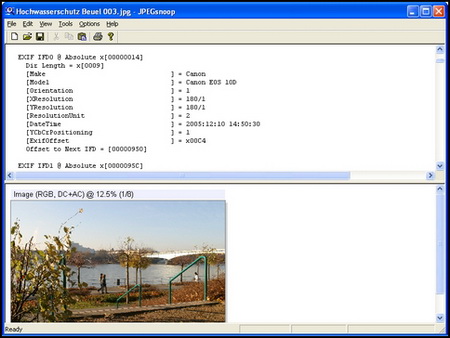
JPEGSnoop is a tiny portable open source program that goes beyond extracting EXIF metadata, this free application can indicate the quality of the JPEG image compression used by the camera saving the file, JPEGSnoop uses the fact that each digital camera has different and specific compression quality levels when taking a picture and it compares that unique pattern against its large database of compression signatures reporting what digital camera or graphical editor was used to generate the image, being able to determine if a photograph is truly original or it has been edited with a graphics editor like Photoshop, software graphical editors unique compression signatures are included too in JPEGSnoop database.
JPEGsnoop reports countless of other details, EXIF / IPTC metadata, Huffman table decode, quantization table matrix (chrominance and luminance), chroma subsampling, JPEG saving settings, JPEG resolution settings, RGB histograms, etc. People who do not need that technical wealth of information about a digital picture can just skip it and look at the EXIF data instead, which normally includes basics like location, model of camera used and date and time.
JPEGSnoop digital photo forensics
JPEGSnoop can open .jpg, .thm (thumbnail), .avi, .dng (digital negatives), .pdf, .mov and extract embedded JPEG files from within them. If the photograph is corrupted and can no longer be viewed JPEGSnoop will try to recover the photograph thumbnail if there is one. This application can be of great use for home users wondering if that famous celebrity in the digital picture is a fake or real photo and it will also be of use for digital image forensic experts and amateur photographers alike.
There is other software capable of retrieving photographs metadata but JPEGSnoop stands out from the crowd by being the only one I know of able to tell you if the picture was edited with a graphical editor.
It is very hard to predict when a hard disk will fail, Acronis Drive Monitor is a free hard disk monitoring tool that will alert you before a hard disk crash. Acronis Drive Monitor will avoid data loss by monitoring the physical hard disk health using S.M.A.R.T. (Self-Monitoring, Analysis and Reporting Technology) readings and warning you before the drive fails.
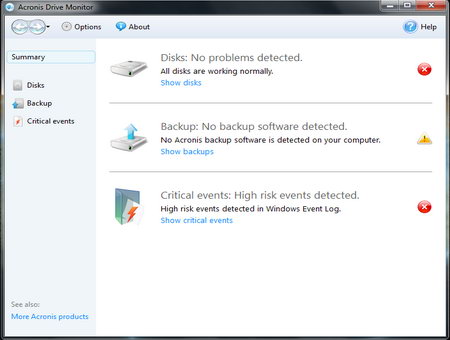
A colour coded summary provides an overview of the disk’s health at a glance, in addition, when it detects a problem it will generate an onscreen alert or send and email depending on configuration.
This free hard disk monitoring tool will warn you if no back up software has been found in the computer, it is inevitable that all hard disks will fail one day, nothing lasts forever, everyone should have a back up solution put into place it is highly responsible to warn users about this, even if Acronis is trying to push its paid for back up software in the process.
Acronis Drive Monitor software
Acronis Drive Monitor main features
Hard disk health monitoring in the background
Monitoring of event logs for possible problems
Email alerts in case of hard disk complications
Weekly hard disk electromechanical status report
Support for RAID hard drive configuration
This Acronis product integrates very well with the rest of the premium Acronis home and business software but you do not need to have any of those installed in order to use it, Acronis Drive Monitoring seems to have been released with the freemium market in mind, where people are given something for free with the hope that they will upgrade to a paid for product with more features.
This hard disk monitoring tool does an excellent job, is easy to use and it is on a par with paid for hard disk diagnostics software.
The Chinese government has had the Golden Shield Project , 金盾工程 (aka Great Firewall of China) since 1998. Officially Chinese Internet filtering blocks access to websites containing:
Anti-social opinions and activities (decided by China censors)
Organizations and commentaries which are a threat to national security (Tibet, Taiwan, etc)
Pornography
Organizations and commentaries undermining the government’s policies on religion (Falung Gong)
Websites helping to circumvent Internet censorship
It is also possible that your website could be blocked in China by mistake, websites blocked by China ISPs are also likely to be deindexed from China based search engines and will not be shown in the results.
How China blocks websites on the Internet
It is not technically feasible for Chinese censors to examine all of the Internet content, the Chinese government blocks access to websites using firewalls and proxy servers at the Internet gateways of China’s ISPs.
Researchers from the University of California, Davis and University of New Mexico found out that the Great Firewall of China is not a true firewall since banned material is sometimes able to pass through several routers or through the entire system without being blocked.
Website filtering is done through and ad-hoc network without a centralized server it is possible for some web sites to be in one Chinese city and available accessing it from another region of China.
When the Chinese Internet filtering system detects a banned word traveling across the network it sends a series of commands to break the connection and block the access to the website. Chinese internet filtering looks for the use of banned words, this will encourage a certain level of self-censorship from Chinese surfers since they know that certain words are taboo they will choose a different topic altogether.
Filtering was particularly erratic at Internet peak times when more Chinese users were online.
Website banned in China
How to reduce the likelihood of your site being blocked in China
Do not post political material considered sensitive by the Chinese Government: Some obvious content susceptible to be blocked by the Chinese authorities includes references to the Falung Gong spiritual movement, Tiananmen Square protests, democracy in China, Taiwan independence and the free Tibet movement in between others.
Get a dedicated IP for your hosting: This will reduce the chances of your site being blocked by accident due to using a shared hosting account hosting content banned in China in a different domain.
Do not publish pornography: Internet pornography is forbidden in China and the Internet police will block access to your site if they find out your website distributes it.
Get a webhost located in China: Chinese webhosts are more expensive and downtime might be higher than in other locations but they are also less likely to be blocked by the Chinese Internet filter.
Although administered by the Chinese government Hong Kong is not subjected to Internet censorship as it has special status.
Test if a website is blocked in China
Site24x7: This service will ping a website from different locations across the world, including servers located inside China, if you notice a packet loss from those servers this could indicate that the site is not accessible in China.
ViewDNS China firewall test: This test checks for symptoms of DNS poisoning, one of the more common methods used by the Chinese government to block access to websites, the test uses test a number of servers from various locations in mainland China.
Watch Mouse: This service monitors your website access from various locations across the world, including tests using servers located inside China.
WebSite Pulse: This test will connect to your site and will download the complete HTML web page using various servers located across China, it will also report how long it takes to download.
GreatFirewallOfChina: Websites are tested used various servers located in mainland China, you will be informed whether the request has timed out, it failed (blocked) or it is reachable.
If you need to perform frequent tests on website accessibility or SEO from inside China you can use China based VPN, this will mask your real IP and make you appear like you are Chinese Internet surfer.
Web2PDF is a free service to convert websites to PDF and it allows you to receive full websites in your email as a PDF files.
It is being sold as a service for those with limited access to the Internet but it also works fantastic to bypass Internet filters, as long as you can access to your email you can ask Web2PDF to send you via email any website in the World, whether blocked by your ISP in your country or not, Web2PDF servers converting sites to PDF are located in the United States and that is the location that will matter when you request a blocked site is sent to you.
I have tested Web2PDF requesting pornographic sites are sent to my email and it works very well with the service sending me via email a PDF that includes pictures and text.
I tried to request single pictures or single files from a website and it returns a blank PDF, the request needs to be a full page and not a single file, the PDF that Web2PDF sends you is non clickable you can not visit the links included, other than that this works perfectly well, it took 2 minutes for my banned website to be received in my email inbox, just make sure you can receive attachments.
There is no Internet filter capable of blocking this page retrieval system, it would be necessary to block your access to all email services for that. You can also use a mobile device able to read PDF files and capable of receiving email and browse the Internet this way, however data bills must still be taken into consideration.
Read websites without Internet access
If you do not have Internet access at home and normally use a Library or Internet cafe for an hour a day you can ask Web2PDF to convert to PDF all of the websites you would like to browse, save the PDF converted sites on a USB memory stick and read them with time in the comfort of your home with an E-book or any other device able to read PDF files.
If your College or workplace limits your Internet connection to only email, you can request Web2PDF the websites be sent to your email and get around the filter restrictions. Any network administrator looking at your activities will not be able to know that you are browsing the Internet and what sites you visit, at most they could see that some of your emails contain attachments and its size but not able to read the content if you use an email service with SSL encryption protecting you from from man in the middle attacks.
Web2PDF tutorial: Click to picture enlarge
Web2PDF tutorial
To receive any website in your email as a PDF document send a message to: SUBMIT @ WEB2PDFCONVERT.COM simply write the URL you want to retrieve in the subject or body of the message and leave the rest of the message blank, you should receive a copy of the requested website in your inbox in a few minutes.
You can use Web2PDF if you do not have a proxy server and want to anonymously visit a site without anyone knowing and leaving no logs on the server, if you request the site is sent to you via email the only IP logged by the site you are reading will be the Web2PDF computer IP address, I have checked this on my own server and Web2PDF bot identifies itself as ISP VolumeDrive located in Clarks Summit, Pennsylvania, United States.
VolumeDrive is a data centre, I am assuming that is where their automated bot resides, although Web2PDF itself has its headquarters in Lithuania (Europe).
I do not know the maximum number of websites you can request to be sent to your email but there is a cheap premium option that removes that limitation, allows you choose the paper quality and it removes their company logo from the PDFs sent to your email.
Search the Internet using your Email
If you are not sure of the website URL address you want to retrieve, you can use a service called Web2Mail that works like Web2PDF and has extra features, it will not send you PDF files it uses HTML files instead which reduces the size of the email.
To use Web2Mail to search the internet via email you just input the search words in the email subject, send it to their address at WWW @ WEB2MAIL.COM and you will get a reply with your internet search results in your inbox in 5 minutes.
Web2Mail also allows you to set up Email subscriptions to your favourite web pages, you don’t need to request them all the time, you can set up Web2Mail to send you a copy of certain website daily or weekly to your email inbox.
Every time you visit a website with your Internet browser through the HTTP header exchange the server will know what your browser brand you are using as well as your settings and what plugins you have installed, this data will be used in order to give you the optimum experience to serve you the best content for your Internet browser settings.
Typical information that the Internet browser transmits to the server of the visited website are the operating system, the Internet browser brand, browser version, local language settings (which can be used to determine what your native language is), if JavaScript is disabled or enabled, flash or Java plug-in presence and anything else to do with the browser environment, the combination of all of these settings together with data like geolocation, can make your browser unique and enable someone to identify and track you through websites.
Test your Internet browser uniqueness
According to an study by the Electronic Frontiers Foundation only one person in about 1,500 will have the same User Agent as you, once you combine this data with geolocation and unique browser plugins you can see how your Internet browser can become so unique that it can be used to track you down.
Before you do this be aware first that changing your identifying browser user agent can make a website to display tailor made content for a different browser brand and present you with a malfunctioning page, but not in every case, this is just the price for achieving high Internet privacy. You can always disable the browser User Agent fake ID for trustworthy websites you trust and only use for places that you believe could be tracking you down on the Internet.
The fingerprinting of your Internet browser uses a combination of your computer IP, browser header and configuration information, one of the best things you can do to confuse websites tracking you down is to use a VPN to change your geolocation combined with a random browser user agent.
Local Shared Objects (LSO), commonly known as Flash cookies, are used by any website that contains Flash based animations or videos, the Flash Player uses a sandbox security model and the cookies it installs are not handled by your browser, this means that you can not delete them using the browser cookie manager.
There is relatively little public awareness of Local Shared Objects, many of the most popular sites on the web are dependent on Flash, and thus a high percentage of Internet users have installed the Flash plug-in.
Adobe Flash Player default settings does not seek the user’s permission to store Flash cookies on the hard disk, those cookies are then used for tracking purposes by websites. Online banks, merchants or advertisers all may use hard to erase Flash cookies for tracking purposes.
Flash cookies storage mechanism is sometimes used by evercookies and since they are not browser based there is currently no easy way for the average user to remove them, simply deleting the files does the job but a user would need to know where they are located. This makes Flash cookies very persistent on the local system and hard to erase without specialist software.
The private browsing features in Chrome and Firefox are a complete false sense of privacy and security since both browsers do not have build in protection against Flash cookies not even in private mode browsing.
Differences between conventional cookies and Flash cookies
The Flash standard incorporates local Shared Objects (LSOs), which allows data such as preferences to be stored in the local Flash instance on a user’s machine. Flash cookies are stored as individual files with a .sol file extension, by default they are less than 100 Kb in size and unlike traditional HTTP cookies, they have no expiration date.
A browser cookie has a limit of just 4Kb while flash cookies can store up to 100Kb.
A browser cookie has an expiration date a flash cookie does not expire.
A browser cookie can be deleted using the browser cookie manager, a Flash cookie can not.
Flash Cookies give very similar information to what we find in traditional HTTP cookies such as what websites were visited, when the site was first and last visited and since the .sol (Flash cookie extension) files are saved individually, there are also a set of file system timestamps that give away the date and time certain website was visited.
Important to note that Flash based advertisements also have the ability to save Flash cookies in your computer and you do not need to have visited their domain in order to have one of its cookies stored in your hard disk, just viewing and advertisement from that website will be enough reason to have one of its Flash cookies in your hard disk.
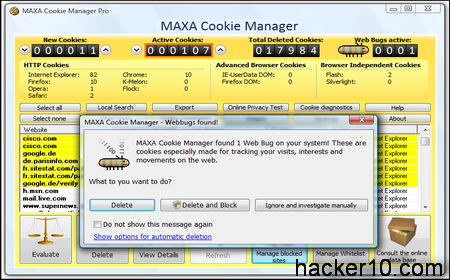
MAXA cookies manager
Firefox plugins to delete flash cookies
NoScript FireFox addon: The NoScript Firefox extension provides extra protection for Firefox, Seamonkey and other Mozilla-based browsers. This free open source add-on allows JavaScript, Java and Flash and other plugins to be executed only by the trusted web sites of your choice.
BetterPrivacy FireFox addon: BetterPrivacy is a safeguard which protects from usually not deletable Flash cookies on Google, YouTube, Ebay. Better Privacy Firefox extension is a free tool for identifying and removing Flash cookies from your local system.
Ghostery browser addon: Available for Firefox and Chrome, able to detect trackers, web bugs, pixels, and beacons placed on web pages by ad networks, behavioural data providers, web publishers, and other companies interested in your activity. Ghostery allows you to block scripts from companies that you don’t trust, delete local shared objects, and even block images and iframes.
Click&Clean FireFox addon: This Firefox addon can erase all temporary Internet files, remove downloaded files history, cookies (including Flash cookies) and typed URLs. Quick&Clean allows to delete private data when Firefox closes.
Windows software to delete Flash cookies
Flash Cookie Cleaner: Freeware application that allows you to view and delete the flash cookies from your computer, it does not offer customization but gets the job done quickly and efficiently.
Maxa Cookie Manager: A windows tool that can manage Flash cookies together with conventional cookies, works with all major browsers and handles all kinds of cookies in a centralized way. The Pro version allows you to keep some cookies while deleting the tracking cookies and web bugs.
.sol Editor (Flash Shared Object): This open source Flash cookie editor can open and create a Macromedia Flash shared object file (.sol), display the content of the file and allow you to change the values.
Macromedia Flash manager: By visiting Macromedia Flash settings website you can view Flash cookies locally stored in your computer and use the Adobe Flash player manager to delete Flash cookies as well as deciding to trust or reject them permanently in the future.
To make sure your system is clean of Flash cookies you can perform a search of your entire hard disk, including hidden and system files, for the extension *.sol, since Flash cookies use the .sol extension.