The most common way to find out who is hosting a website is by doing a whois on the domain name and looking at the Domain Name System (DNS) which often leads to the hosting provider, but in occasions some webhost do not use an obvious NS name making it difficult to find out who the host is, it is also possible for those on a dedicated server to create their own custom DNS name throwing off the trail anyone investigating them, or to use a free DNS provider that helps hide the real hosting company.
HostLogr.com: This free service will show you a website data centre physical location, can be useful to troubleshoot ping rates and latency as well, it will also the website IP with a list of websites sharing the same IP, a common happening in shared hosting, but this does not mean that all those sites belong to the same owner, just that they are on the same server.
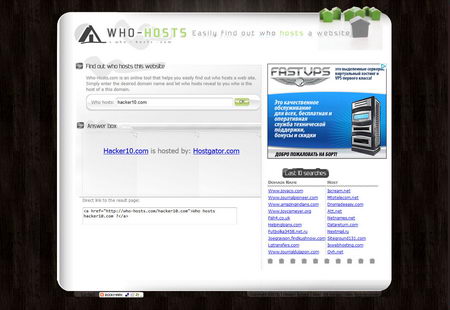
Who-Hosts.com: This service will name the webhosting company behind a website. If you are going to report abuse this is much more useful than finding out about the data centre since abuse reports should be send to the hosting company and not the data centre.
Who-Hosts finds out who is hosting a website
Whois.Domaintools.com: A very complete domain name information tool, with details about domain name registrar changes, IP history, whois history changes and DNS changes. This data will not tell you who is hosting a domain name but domain ownership and registration dates can help you work out what a website has been up to in the past. You will need the paid for version of Domaintools to get access to the most advanced features..
Ishostedby.com: A simple report tool showing a map with the exact geographical location of the server, the IP and the data centre where the server resides, a data centre is also the ISP for that server/website, if a hosting company ignores an abuse report it might be worthwhile try to send an abuse complaint to the data centre as a last resort.
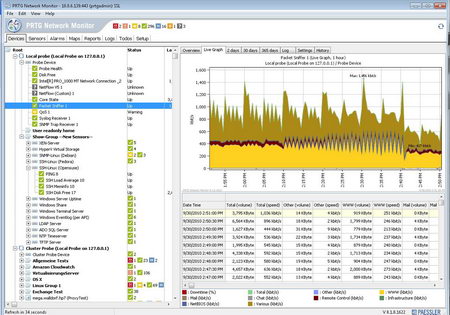
PRTG (Paessler Router Traffic Grapher) Network Monitor is a Windows only free monitoring tool to scrutiny network traffic and evaluate performance (i.e. availability and usage), it enables network administrators to find out the CPU and memory load providing live readings. This network tool displays very detailed information with easy to understand graphs allowing you to see what traffic is roaming through your network, PRTG Network Monitor comes preconfigured with templates for various devices, it can analyze any device attached to your computer network, including routers, servers and firewalls.
PRTG Network Monitor software
Understanding network usage is fundamental to optimize it and avoid bandwidth bottlenecks, network monitoring software helps you discover traffic jams and troubleshoot network problems. The software is comprehensive, it has an intuitive multilingual interface that can be password protected, access is possible using an Internet browser locally or over the Internet, using an iPhone/iPad app (called iPRTG) or using a Windows GUI. A system tray balloon will immediately notify you of problems when they occur, if you are away from your computer just set up notifications to your email or mobile phone via SMS, the free version comes with 10 sensor types (over 100 sensors in the commercial version) looking at TCP/IP connectivity, HTTP, SMTP, FTP, SSH, etc.
PRTG Network monitor includes a packet sniffer that makes for a good alternative to Wireshark, it can monitor network users capturing packets and find out what websites they visit in real time, if you suspect an unauthorized person is using your wireless network this home network software will help you find out their hardware MAC address and what they are doing, once you choose the network adapter you would like to monitor (i.e. wireless or Ethernet) you can instruct PRTG to log all captured traffic to review it later on.You will need some basic understanding of network protocols before using this tool, other than that, it is very easy to manage.
Link Password is a Firefox addon to encrypt your Firefox browser bookmarks using the symmetric AES cipher, you could combine Firefox Private Browsing mode that runs in RAM memory and does not save anything to your hard disk, with this privacy Firefox addon that will hide what your favourite sites are, it can be useful for those sharing computer at home or an Internet cafe, library, etc.
If you already have bookmarked link you can choose to encrypt them, Link Password can encrypt individual links or the folders containing them, it uses its own protocol “linkpassword“, the links can be renamed and rolled back if necesary, when you click on a link you will be asked for the password before it can be opened, decryption and encryption of bookmarks can be done with using a right click.
Link Password Firefox privacy addon
An alternative to Link Password would be to create an encrypted container and store Firefox Portable inside (including bookmarks), but encryption software like Truecrypt requires administrator rights and can not be used at libraries and Internet cafes where you are logged in as a user.
Mozilla Labs, the makers of Firefox browser and Thunderbird, have come up with an experimental browser based single login system called Mozilla Persona. After a user has verified his email address by visiting a link sent to his inbox he can claim ownership and use that email address and a chosen password to login at any site supporting Mozilla Persona, very few at the moment, you will know if a site supports Mozilla Persona when they show the logo.
The main advantages of Mozilla Persona are that it saves surfers from having to remember dozens of different usernames and passwords across sites, it does not leak information to the website you log in and it works across browsers, site authentication only needs Javascript enabled to work .
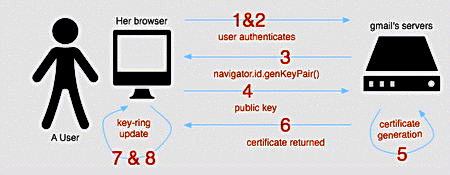
The Mozilla Persona website is used as authentication backend server holding user’s email details, but anyone can run their own verification server, Mozilla Persona is a decentralized login system. When a user logs into a Mozilla Persona identity provider a set of public/private encryption keys will be created inside the browser using javascript, the public encryption key is then sent to the Mozilla Persona identity provider where it will be used to sign an identity certificate before sending it to the user’s browser for storage.
Any website requiring a user to login using Mozilla Persona will use javascript to prompt the user if wishes to login, if he agrees the browser will send the previously stored browser identity certificate, digitally signed with that user’s private encryption key, the login server will verify the signature asking the Mozilla Persona identity provider for the user’s public encryption key, making sure the digital signature is valid.
The disadvantages of Mozilla Persona are that websites need to support it and since many already support OpenID, Google Account login, Twitter and Facebook connect, they will be wondering if they really need to add even more login plug-ins, another downside is that if your Mozilla Persona provider goes down you will be unable to login to dozens of sites. This is what happened to my OpenID provider some time ago and it was then that I made the decision not to use OpenID anymore, failure of the authentication server or a denial of service attack against the server constitutes a huge risk.
How Mozilla Persona works
Mozilla Persona vs OpenID
OpenID is a more seasoned one click authentication system that shares some common ground with Mozilla Persona, both systems need a single username and password to login across multiple sites and act like a third party authentication server working across browsers, the main differences are:
Mozilla Persona does not involve the identity provider in the login process whereas OpenID identity providers are part of the authentication process, this means that OpenID identity providers are aware of the sites you are a member of, Mozilla Persona protects your login activities from identity providers, OpenID does not.
Mozilla Persona has been designed to tightly integrate with the browser with the login process taking part within it, a Firefox add-on is in the making, OpenID redirects you to a website for the login process to take place.
Mozilla Persona always identifies users with their email address, OpenID authentication process does not always implicate a user email address.
Conclusion Mozilla Persona
I fail to see how Mozilla Persona is any better than a password manager, Mozilla Persona simplifies login across multiple sites by only needing a single password and a password managers will automatically fill in your username/password, not having to type it in, all you need to know is the masterpass, just like with Mozilla Persona ID.
Mozilla Persona can be a good replacement for those endangering their privacy using Facebook connect and Twitter accounts to login at other sites, by using Facebook connect you are giving third party companies access to private data, Mozilla Persona, like OpenID, will stop that, but I am not seeing myself using Mozilla Persona any time soon.
I am very happy with my offline password manager and I believe it is a much more secure login system than using a server that I have never seen or audited to manage my login credentials for dozens of sites.
Note: Mozilla Persona used to be called BrowserID, this post has been updated accordingly.
Windows File Protection (WFP), first introduced with Windows Millennium, (Windows Vista uses something called Windows Resource Protection) is a built system that detects the replacement and overwriting of system files, caused by malware or badly written software, if system files where to be erased it would cause continuous operating system crashes and even prevent it from booting up. Windows File Protection can not be turned off by users (unless using a kernel debugger).
After uninstalling a program you will find junk files left behind due to a substandard uninstaller, many times those files can not be manually erased with Windows complaining that they are locked, another explanation for locked files is corrupted files or changed file permissions, it is also possible that folders pointing to an invalid name or to an extremely long path can give you an error when you attempt to erase them, and there are malware files locking themselves in to prevent you from erasing infected files.
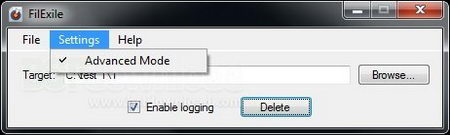
FilExile erase locked files
Erasing locked files
FileExile is an easy to use open source program that will get rid of hard to erase folders and files, all you have to do is to locate the hard to erase file or folder, select it and click on “Delete“, you will not even need to reboot your computer. FileExile allows you to log all operations to keep track of what has been erased.
I have also managed to erase locked files using a simple secure data shredding application this gets around Windows File Protection most times and circumvents Windows recycle bin.
This lightweight system monitoring software (802Kb) supervises the programs running in your PC, it will create a snapshot of the critical files in your operating system and warn you if anything has changed, it uses heuristics, based on file behaviour, to detect zero day attacks. WinPatrol has a tabbed easy to navigate interface. Inside the “StartUp Programs” tab you will see a list of the software that starts at boot time, double clicking on any of the program names will give you further information on them, with another click you can disable a start up program or decide to delay its launch, this can speed up your Windows boot up time.
WinPatrol will stop changes without your permission in the registry, scheduled tasks, IE Addons, ActiveX controls and more, hidden files will be exposed and if a program has changed a file association, WinPatrol can restore it. Unlike other antispyware software WinPatrol does not scan your hard disk for malicious files it monitors the system files behaviour instead, this will minimize conflicts with other computer security software you are running. WinPatrol also has a privacy feature to stop Internet tracking cookies allowing you to manage your cookies and erase them based on cookie name using keyword filtering.
WinPatrol system monitoring tool
If you suspect you have malware in your computer or notice a sluggish PC, you can use WinPatrol to look at the software running and kill unwanted background processes, WinPatrol it is a good complimentary tool to stop malware. Together with a good antivirus and firewall, this software will help you control how your computer system files work, some of the features like real time monitoring and access to a database with information about cryptic files and what they do are only available with the non free Plus version of WinPatrol.
This security app consists of a front end application implementing Linux IP tables (IP packet filtering at kernel level) to stop unauthorized outgoing Internet connections, unlike other so called “Android firewall” applications that only block SMS messages and calls, Droidwall really blocks app Internet access.
A benefit of blocking apps Internet access, besides security, is that you will not waste your bandwidth and battery with unknown call home data connections that some developers embed in their apps, Droidwall lets you turn off 3G and Wifi access, with 4G support, for any application, if you don’t trust an app installed in your smartphone disable its Internet access, you can log what app is accessing the Internet and review it later making sure there are no malicious hacking or unwanted Internet activities going on in your phone.
Droidwall can be password protected so that only the phone owner can change the settings, it is easily configurable, with a whitelist mode where nothing is allowed onto the Internet and any app desiring Internet connection will need an approval first, and a blacklist mode where Internet access is available for all apps and the user needs to select what applications to block.
Free Android firewall Droidwall
Droidwall default firewall method is the whitelist mode which is safer, if you modify the settings make sure to tap on “Apply rules” after the changes or they will not take effect. This Android firewall app does not work in the background continuously consuming battery, once the rules have been saved the app gets out of the way and will not waste battery power.
Note: App requires a rooted device for installation.