Facebook Privacy Watcher is a Firefox addon to help you manage Facebook privacy settings using colour codes. Instead of having to pay attention to checkboxes and tiny text in Account Settings> Security hoping that you got everything right, Facebook Privacy Watcher will visualize public posts in green, friends only posts in orange, red posts only visible to you and blue coloured posts only visible to a subset of friends.
You can change any post privacy setting with a couple of clicks, colouring also works in your profile and photo albums. The addon runs in your browser no data is sent to the developer.
Facebook Privacy Watcher
This addon is not yet available in the official Mozilla addons repository but it is partly developed by the Technical Univeristy of Darmstadt which should give some peace of mind about malware.
Other security measures you might want to take to secure your Facebook account are linking it to a mobile device, enabling always on secure HTTPS browsing, choose a strong password and set up login notifications where Facebook warns you when your account is accessed from a device not previously used.
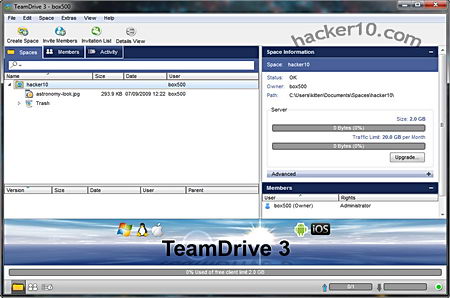
TeamDrive is a cross platform (Windows, Mac, Linux) cloud storage service with uncrackable encryption, using AES256bit and RSA-2048 public/private key, data is encrypted in your computer before it reaches their cloud servers, Teamdrive has no way to access the files, limiting their legal liabilities since you can’t be compelled to decrypt something that you don’t have the key for, the encryption key remains in the user computer at all times.
To set up a Teamdrive account you are only required a valid email address, I liked that they have a portable version that can be carried in a USB thumbdrive or kept inside an encrypted virtual container (e.g. Truecrypt), but you will need to configure the default settings to make sure that there is no data leakage in the host computer, luckily Teamdrive software settings display the file path for data back ups and cache, a quick look will tell you where in the drive it is kept.
Encrypted cloud storage TeamDrive
The program is divided intro three tabs, “Spaces“, where you can create folders, organise your files and set access permissions for other members and with a right click send an invitation via email revealing the URL for the data you would like to share with others, optionally, spaces can be password protected. Another tab called “Members” lets you see who has access to a particular space and a third tab called “Activity” contains a very detailed log of file movements, like uploads and downloads with timestamps. To add files, manually select them or drag and drop inside the window, everything is quickly sync when there are changes, a trash can will save erased files that can be restored if you change your mind.
Inside settings you can configure a proxy if you are using it to access Teamdrive cloud storage space, the paid for version allows you to assign roles to other people, setting up administration rights, like being able to publish and delete files or remove other members from a shared space. There is support for smartphones, you can run the application in Android or iPhone The free version has limited storage space and bandwidth, indicated inside the application with a graph bar, enough for light file sharing.
Teamdrive is a decent alternative to SpiderOak and definitely better than Dropbox, where the company can decrypt your data, if you care about privacy drop Dropbox now.
OnlineVNC is a service that allows you to remotely control a computer using a web browser running on any operating sytem, wherever you are, work, hotels, etc. The service can also be used tor provide online IT support, the only thing needed for it to work is installing the Windows only software on the server side and that Adobe Flash is present on the client side. The application can also grant access to your home computer to friends or work colleages to share huge files with the built-in FTP client or show presentations.
The server control panel allows you to see who is connected and what they are doing in real time, being able to restrict or give viewing, keyboard or mouse access. There is no limit to the number of people who can connect to the computer, communication takes place using the Remote Framebuffer (RFB) protocol, compatible with offline Virtual Network Computing viewers like TightVNC, RealVNC and UltraVNC, you can log off or lock the remote computer without breaking the connection, the remote desktop picture can be scaled, with a fit to screen mode and the network speed can be changed to slow, reducing the quality of graphics optimizing bandwidth in slow networks.
Remote desktop access OnlineVPN
The connection port number can be configured, this should help getting around firewalls and making your server harder to spot on the Internet by adopting a non usual port, if you notice anyone scanning your computer adding their IP to the Host Filter will blacklist it.
There are trust based downsides to this uncomplicated solution for remote computer access, if you are not using your own computer it would be a security risk accessing OnlineVNC because you have no guarantee against keyloggers in an Internet cafe, but with your own tablet or laptop it is not a problem. Another downside is that the RFB protocol is not very secure and it is possible to crack the password if someone on the network captures the encryption key, but you can tunnel OnlineVNC over a VPN adding an extra security layer with strong encryption, a third downside is that you have to trust the company managing the service to respect your privacy and be responsable, beyond that, OnlineVNC is acceptable for those looking for an effortless way to remotely access computer files.
This Secure Shell server/client Windows program provides secure encrypted communications in between two hosts, the custom installation allows you to choose an exclusive install of an SSH/SFTP server and/or included management tools. SilverShieldD implements a server side technology called SafeUP to protect file uploads when the client doesn’t protect them.
Secure SFTP clients like WinSCP upload files with a fake name and renames them in the server after successfully upload, this system stops accidental overwriting of the server file if the connection breaks before the upload is finished, SilverShielD SafeUp technology does exactly the same thing but on the server side. The software comes with an easy to understand help manual full of screenshots, and a command line version called SilverCLI that can be integrated in third party management tools.
Free Windows SSH/SFTP server SilverShielD
Each SilverShielD user has its own set of public encryption keys to connect to the server, a keyring with multiple keys can be used too, there is a public key management window where to add, generate or remove encryption keys setting parameters like key length and key description, the latter will be kept in logs when a user connects to the server, you can also use PuTTYGen to create your own SSH keys and import them into SilverShielD.
Server administrators can apply individual user and folder permissions, ticking a simple checkbox a user ability to upload, download, delete, list files and much more can be managed and decide what kind of authentication mechanism can be accepted, public encryption key based, only password or both, while restricting connections to a single IP or network. An event handler can execute scrips for a specific user, when there are multiple scripts the initiation order can be established by order. File uploading can be set with Z compression on, a a lossless compression scheme called zlib that works across platforms and saves bandwidth and increases transfer rates during file uploading.
SilverShielD is easy to use with options containing all you need divided into tabs , from choosing what encryption algorithms are allowed, inside the “Expert Settings” tab, up to entering an SMTP server for when a script needs to call SendMail or Postfix. The “Security Settings” tab lets you customize tarpit timeouts to stop port scanning, a very common occurrence carried out by bots trying to find an open port in a server before a malicious hacking attack takes place, tarpit can ban attackers IP addresses if they keep sending unasked server probes.
This is a highly customizable SSH/SFTP server that advanced IT users should like, the free edition can be deployed for non commercial purposes, allowing for up to 3 concurrent connections at a time, businesses need to purchase a license.SilverShielD is fitting for people who are not comfortable with the command line and need an advanced SSH/SFTP server that can be set up at home in a matter of minutes in any old spare computer.
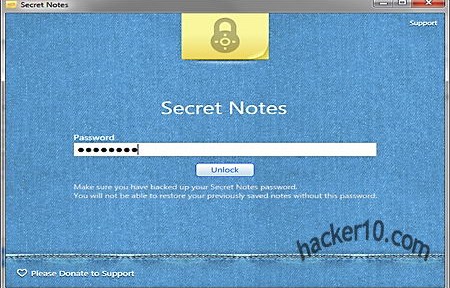
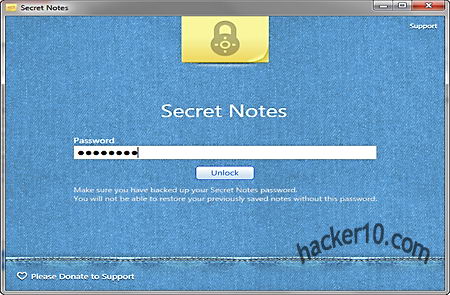
Secret Notes is a free program to write and keep password protected notes, during installation you will be asked if you would like to install adware called “cleanmypc“, this can be skipped if you pay attention and uncheck a tickbox, but it is compulsory to enter a registration email address for the program to be activated over the Internet. After launching this tool you will be asked to enter a masterpassword twice, you will need to launch the program and unlock the Secret Notes to add or edit new information.
The program is very eye candy with a nice interface that looks like real yellow Post-it notes, the background can not be changed but the font colour can be modified to over a dozen different hues, made bold, italic or underlined, with a basic do and undo arrow buttons and a trash can symbol next to the date and timestamp. All pretty basic but enough for taking notes and they are all beautifully organised in rows.
Password protect notes with Secret Notes
A “Lock Notes” button will close down the software and make it inaccessible without a password. I was unable to find any information in the developers page about what kind of encryption it is used to secure the notes, assuming that is what they use, I would treat this tool as a very light guarantee program until more information it is given about the employed defence system, I don’t think it is proper for a security product to omit it.
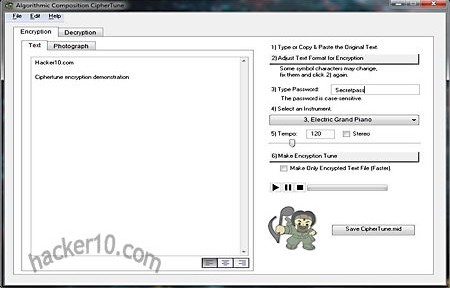
CipherTune is a tool for Mac and Windows to hide text and photos inside .midi sound files using the encryption algorithm Blowfish 256bit. There is no need to install this software, it runs in portable mode, the program is divided into tabs and everything is intuitive, only the drop down camouflage menu is different from anything you have seen before, when you choose to encrypt a file the methods you are given are made of music instruments like “Chorused Piano“, “Harpsichord” or “Electric Grand Piano“, you can adjust the Tempo and choose if the resulting sound file has to be in stereo or mono.
By producing a container sound file the software saves you time by not having to look for an appropriate .midi song with the right size that can be used to hide information inside but it also limits the choice of cover stories you can have for owning that sound.
Steganography and encryption CipherTune
The software includes an audio player to listen to the sound file after you click on “Make Encryption Tune” before saving it. I opened one of these .midi steganographic files with Notepad and everything appeared to be encrypted and non readable expect by the words “Text to CipherTune by Kenji Kojima“, this gives away that the file was created using a steganography tool that can embed hidden messages and photos inside, this is clearly not software that you should rely on for secure cover communications, to start with .midi files are not as common as .mp3 and they could attract some attention if there is no valid reason to have them, and then there is the embedded text telling observers what program was used to create the sound file.
This is a very original program, let’s hope security can be improved a bit more by erasing those lines in the header sound file revealing that steganography is present.
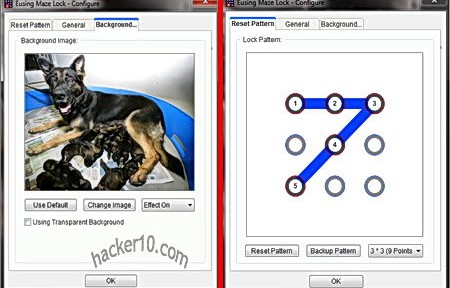
Eusing Maze Lock is a free pattern based screen lock to stop people from accessing your computer while you are away, the unlocking mechanism consists of nine dots inside a grid that have to be connected in a certain order with the mouse to unlock the screen. This type of screen lock is often found in smartphones, it is commendable for this company to bring a security tool that does not require you to remember yet another password. The unlocking pattern is easy to remember if you use it daily, otherwise a back up copy can be kept in a safe place, or uploaded to your email account so that if you forget the unlocking pattern diagram you can restart your computer or look at the online back up copy using another device.
The program will autolock the computer when idle, the background lock can be transparent or set to any image of your choice, the configuration tab allows you to specify the inactivity period before the computer screen locks, and optionally lock the keyboard or disconnect the computer from the Internet when the screen lock is activated, this stops people from messing around with your data if you have a document open in the background. If anyone attempts to get into your computer using the wrong pattern code a loud alarm siren sounds displaying a custom message on the screen and the computer will go into lock down for in between one and three minutes before any other unlocking attempt can be made, or alternatively the machine will shut down, the choices can all be set inside the configuration tab.
Free screenlock Eusing Maze Lock
This is an excellent screen lock that does all you need to protect a computer located in a shared room, but if your adversary is a state or corporation entity they will have the resources to acquire professional computer forensics software, like Passware Kit Forensics, able to get through any screen lock in a matter of seconds using your USB port and the autorun feature to execute a script mirroring your hard drive data or extract RAM memory even with the computer screen locked. If you adversary is low level, Eusing Maze Lock is hard to beat as a free and secure screen locker.